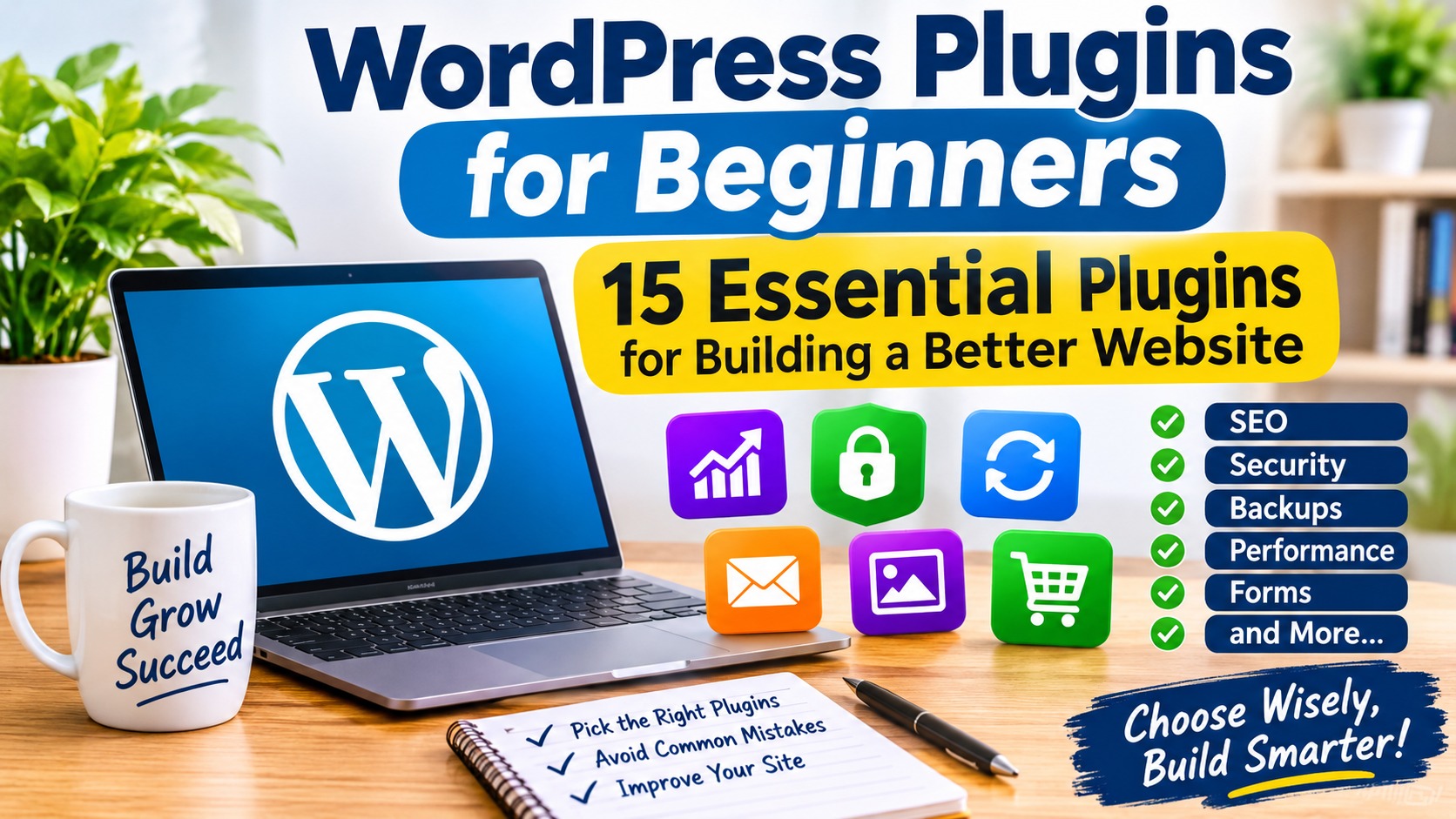
One of the reasons WordPress is popular is its flexibility. You can start with a simple website and add features as your needs grow. WordPress plugins make this possible by adding tools for search engine optimisation, website security, backups, contact forms, performance, online stores and much more.
However, choosing plugins can be confusing when you are new to WordPress. The WordPress plugin directory contains thousands of options, and installing too many plugins without understanding their purpose can make website management more difficult. This guide to WordPress plugins for beginners will help you identify useful tools without installing unnecessary software.
In this guide, you will discover 15 useful WordPress plugins for beginners, what each one does, and when you might need it. You will also learn how to choose reliable plugins and avoid common installation mistakes.
What Are WordPress Plugins?
For anyone starting a new website, WordPress plugins for beginners can make it easier to add essential features without coding.
WordPress plugins are software extensions that add features or change how a WordPress website works. For example, you can install an SEO plugin to manage search appearance, a security plugin to monitor suspicious activity, or a form plugin to allow visitors to contact you.
Some plugins provide one specific feature, while others combine several tools in one package. Many are free, while some offer additional features through paid plans.
You can find and install plugins from your WordPress dashboard by navigating to Plugins > Add New Plugin. You can also obtain plugins from trusted developers, provided you verify that the download source is legitimate.
15 Useful WordPress Plugins for Beginners
Our selection of WordPress plugins for beginners covers essential website functions, from search optimisation and security to backups, performance and communication.
The following plugins cover common website needs. You do not need every plugin on this list. Choose the ones that match your website’s purpose and avoid installing multiple plugins that perform the same job.
1. Rank Math SEO – Search Engine Optimisation
Best for: Website owners who want help managing on-page SEO and technical SEO settings.
Rank Math SEO helps you optimise pages and posts for search engines. It provides tools for editing SEO titles and meta descriptions, analysing content, managing structured data, and generating XML sitemaps.
Its content analysis features can help beginners identify areas for improvement, such as keyword placement, headings and internal links. However, an SEO score is only a guide; it does not guarantee higher Google rankings.
Rank Math offers a free version and paid plans. Beginners can start with the free version and learn the basic SEO settings before considering additional features.
2. Wordfence Security – Website Protection
Best for: Website owners who need additional security monitoring and protection tools.
Wordfence Security provides features such as a web application firewall, malware scanning and login security tools.
It can help identify suspicious activity and alert administrators to potential security problems. Its firewall and scanning features are useful additions to a broader website security plan.
Remember that a security plugin cannot replace strong passwords, timely updates, secure hosting, regular backups and proper access control.
3. UpdraftPlus – Website Backups
Best for: Beginners who want to schedule and manage WordPress backups.
UpdraftPlus helps you back up your WordPress website, including its database and files. Depending on your configuration, backups can be stored remotely using supported cloud storage services.
Regular backups are important because updates, accidental changes, malware incidents and hosting problems can affect your website. A recent backup gives you a recovery option when something goes wrong.
Do not assume that a backup is reliable until you have checked that it completed successfully and tested the restoration process. Keep a copy somewhere separate from your hosting account.
4. LiteSpeed Cache – Website Performance
Best for: Websites hosted on LiteSpeed or OpenLiteSpeed servers, particularly when using the plugin’s server-level caching features.
LiteSpeed Cache provides caching and website optimisation features. Depending on the server environment, it can help improve page delivery and optimise images, CSS and JavaScript.
One important point for beginners is that its full-page caching features work best with supported LiteSpeed server technology or the appropriate QUIC.cloud services. Some optimisation features may work in other environments, but not every feature will be available in the same way.
Check your hosting environment before enabling caching. Avoid running multiple page-caching plugins together unless you understand how their settings interact.
5. WPForms – Contact Forms
Best for: Beginners who want to create contact forms without writing code.
WPForms provides a form builder that allows website owners to create forms using a visual interface.
You can use a contact form to collect visitors’ names, email addresses and messages. Depending on the version and configuration, additional form types and features may be available.
A working contact form makes it easier for visitors, customers and potential partners to reach you. After creating one, test it to confirm that submissions are delivered to the correct email address.
6. Elementor – Visual Website Design
Best for: Beginners who want a visual page-building experience.
Elementor is a visual website builder that allows users to design pages using a drag-and-drop interface.
It can help you create landing pages, service pages and other custom layouts without manually writing all the page code. The free version provides basic design tools, while paid plans offer additional capabilities.
Before installing a page builder, consider whether your WordPress theme and block editor already provide the layouts you need. Adding a page builder introduces another system to maintain and can affect website performance if used carelessly.
7. Kadence Blocks – Additional Gutenberg Blocks
Best for: Beginners who prefer designing with the WordPress block editor.
Kadence Blocks extends the standard WordPress block editor with additional design and layout blocks.
It can help you create more flexible page layouts, content sections, buttons and other visual elements while continuing to work within the block editor.
If you already enjoy using Gutenberg, a block extension may be all you need. You may not need a separate page builder for every website.
8. Site Kit by Google – Website Statistics
Best for: Website owners who want to connect supported Google services to WordPress.
Site Kit by Google is Google’s official WordPress plugin for connecting services such as Google Analytics, Search Console and AdSense.
It can display useful website information in your WordPress dashboard and help you understand traffic, search performance and other available metrics.
Site Kit does not automatically improve your rankings or guarantee AdSense approval. You still need useful content, a well-maintained website and proper configuration of the connected services.
9. Akismet Anti-spam – Comment and Form Spam Protection
Best for: Websites that receive comments or submissions through supported integrations.
Akismet Anti-spam helps identify and filter spam comments and other supported submissions.
Spam can make website management difficult, especially when a blog begins receiving many automated comments. An anti-spam tool can reduce the amount of unwanted content that requires manual review.
Check the plugin’s current plan and usage terms to determine which option is appropriate for your website.
10. Redirection – Managing Broken Links and Redirects
Best for: Website owners who change page URLs or need to manage redirects.
Redirection helps manage URL redirects and monitor certain types of 404 errors.
For example, if you change an article’s URL, you may need to redirect visitors and search engines from the old address to the new one. A properly configured permanent redirect can help preserve access to the content.
Use redirects carefully. Redirecting unrelated pages to the homepage or creating long redirect chains can confuse visitors and search engines.
11. Smush – Image Optimisation
Best for: Website owners who want tools for reducing image file sizes.
Smush provides image optimisation features that can help reduce the size of images used on a WordPress website.
Large images can increase page weight and contribute to slower loading times, especially for visitors using mobile networks. Image optimisation can help reduce unnecessary file sizes while maintaining acceptable visual quality.
Always check the resulting image quality. Also consider resizing images to dimensions suitable for their intended use rather than uploading unnecessarily large photographs.
12. WP Mail SMTP – Improving WordPress Email Delivery
Best for: Website owners experiencing problems with WordPress-generated emails.
WP Mail SMTP helps configure WordPress to send emails through a supported SMTP provider or mail service.
This can be useful for contact form notifications, password reset messages and other website emails. Correct SMTP configuration may improve email delivery reliability compared with relying on a default server mail configuration.
Installing the plugin alone does not guarantee delivery. You must configure a valid sending service and ensure that the domain’s email authentication records and provider settings are correct.
13. WooCommerce – Building an Online Store
Best for: Businesses that want to sell products or services through a WordPress website.
WooCommerce adds e-commerce functionality to WordPress. It provides tools for managing products, orders, customers and store settings.
You can use it to build an online shop and configure supported payment and delivery options. Additional extensions can provide further store features.
WooCommerce is not necessary for every website. If you only publish articles or provide information about your services, you may not need a full online store.
14. TablePress – Creating Content Tables
Best for: Bloggers and website owners who need organised tables.
TablePress allows you to create and manage tables that can be displayed inside WordPress pages and posts.
Tables can make comparisons, feature lists and structured information easier to understand. For example, a hosting article might use a table to compare storage, bandwidth and available support.
Use tables when they genuinely improve readability. Make sure they remain usable on smaller screens.
15. Duplicator – Website Migration and Copying
Best for: Website owners who need to migrate or duplicate a WordPress installation.
Duplicator provides tools for packaging and moving WordPress websites between hosting environments.
It can be useful when changing hosting providers, moving a site to another domain or creating a copy for development and testing.
Migration tools should be used carefully. Confirm that you have a separate, working backup before making major changes to a live website.
How to Choose the Right WordPress Plugins
Choosing the right WordPress plugins for beginners starts with understanding the specific features your website needs.
Choosing a plugin should involve more than looking at its name or installation count. Consider the following points before installing anything.
1. Identify the Problem You Want to Solve
Start by deciding what your website needs. Do you need better SEO controls, a contact form, spam protection or a backup solution? Choose a plugin because it solves a real problem, not simply because it is popular.
2. Check Compatibility with Your WordPress Version
Open the plugin’s details page and review its compatibility information. Check when it was last updated and whether it has been tested with a recent WordPress release.
A plugin that has not been updated for a long time may have compatibility or security concerns. An untested status does not automatically mean a plugin is unsafe, but it is a reason to investigate further.
3. Review Ratings, Support and User Feedback
Look at user reviews, support discussions and the plugin’s update history. Pay attention to recurring complaints about broken features, compatibility problems or poor support.
Do not rely on ratings alone. A popular plugin can still be unsuitable for your particular website.
4. Avoid Plugins with Overlapping Features
Installing two SEO plugins, multiple page-caching plugins or several security plugins with overlapping firewall features can create unnecessary complexity.
Choose one main plugin for each major function unless you have a specific technical reason to use more than one.
5. Check the Developer and Download Source
Download plugins from the official WordPress plugin directory or the developer’s legitimate website. Avoid unofficial copies, nulled plugins and suspicious download sites.
Unofficial premium plugin copies may contain modified code or malicious components that put your website and visitors at risk.
6. Test Important Changes Before Using Them on a Live Website
Before installing a major plugin or changing important settings, make a fresh backup. Where possible, test the change on a staging website first.
After installation, check your homepage, important pages, contact forms and other essential functions. If something stops working, investigate the change instead of installing more plugins to compensate.
How Many WordPress Plugins Should a Beginner Install?
The best WordPress plugins for beginners are those that provide useful features without adding unnecessary complexity.
There is no universal number of plugins that every WordPress website should have. A small blog may need only a handful, while an online store or membership website may require more.
The important factors are plugin quality, compatibility, configuration and the resources required by each plugin. A website with several well-maintained plugins can perform better than one with only a few poorly developed or badly configured plugins.
Rather than aiming for a specific plugin count, install only what your website needs. Review your installed plugins periodically and deactivate and remove those you no longer use.
Common WordPress Plugin Mistakes to Avoid
Beginners should choose WordPress plugins for beginners from reputable developers and review their compatibility before installation.
- Installing too many plugins: Unnecessary plugins increase maintenance work and may introduce conflicts or security risks.
- Using outdated plugins: Old software may contain vulnerabilities or become incompatible with newer WordPress versions.
- Installing plugins from untrusted websites: Unofficial downloads can expose your website to malicious code.
- Ignoring backups: Always have a recent backup before major updates or configuration changes.
- Activating overlapping features: Multiple caching, SEO or security tools can interfere with one another.
- Failing to test after installation: Check that your website still works properly after adding or updating a plugin.
Frequently Asked Questions
Are WordPress plugins free?
Many WordPress plugins have free versions available in the official plugin directory. Some developers also offer paid plans with additional features, support or usage limits. Always review the pricing and terms before purchasing a premium version.
Can WordPress plugins slow down my website?
Yes, some plugins can affect website performance, particularly when they load unnecessary scripts, make frequent database requests or perform resource-intensive tasks. However, the number of plugins alone does not determine website speed. Plugin quality, configuration, hosting and caching also matter.
Is it safe to install WordPress plugins?
Plugins from reputable developers and trusted sources are generally safer choices, but no plugin is guaranteed to be risk-free. Review compatibility, update history, support and user feedback. Keep plugins updated and maintain regular backups.
Should I install multiple SEO plugins?
Usually, no. Choose one main SEO plugin to manage your SEO titles, descriptions, sitemap and related settings. Running multiple SEO plugins with overlapping features may produce conflicting metadata or duplicate functionality.
Can I deactivate or delete a WordPress plugin?
Yes. You can deactivate plugins from the WordPress dashboard under Plugins > Installed Plugins. If you no longer need a plugin, deactivate it and then delete it. Before removing a plugin, check whether it stores important settings or data that you may need later.
Conclusion
WordPress plugins make it possible to extend your website without building every feature from scratch. The right combination can help you manage SEO, protect your website, create backups, improve performance, communicate with visitors and expand your business.
For beginners, the best approach is to start with the essential functions your website needs and add other tools gradually. Choose reputable plugins, check compatibility, keep everything updated and maintain reliable backups.
Remember that installing more plugins does not automatically make a website better. A carefully selected and properly maintained collection of plugins is more useful than a large collection of tools you do not need.
If you are still learning WordPress, explore our guide to WordPress in 2026. You can also learn how to secure a WordPress website, improve your site’s visibility with our WordPress SEO guide for beginners, and understand your hosting options in our guide on how to choose web hosting.
With the right WordPress plugins for beginners, you can build a functional, secure and easy-to-manage website.
Plugin features, pricing and compatibility can change. Check each plugin’s official listing before installation.