Introduction
Building a WordPress website is an important step towards establishing an online presence, but launching the website is only the beginning. Like other digital platforms, a WordPress website requires regular attention to remain secure, functional, fast and useful to visitors.
WordPress website maintenance involves a series of routine activities that help prevent technical problems, protect website data, improve performance and keep content up to date. Neglecting these activities can expose a website to security risks, broken features, slow loading times and unexpected downtime.
A consistent WordPress website maintenance plan helps website owners identify potential problems before they affect visitors. Whether you operate a personal blog, business website, online store or portfolio, having a suitable maintenance routine can save time and reduce the risk of expensive problems.
The good news is that you do not need to be a professional developer to handle many routine maintenance tasks. With the right approach, website owners and beginners can manage essential updates, backups, security checks and performance improvements.
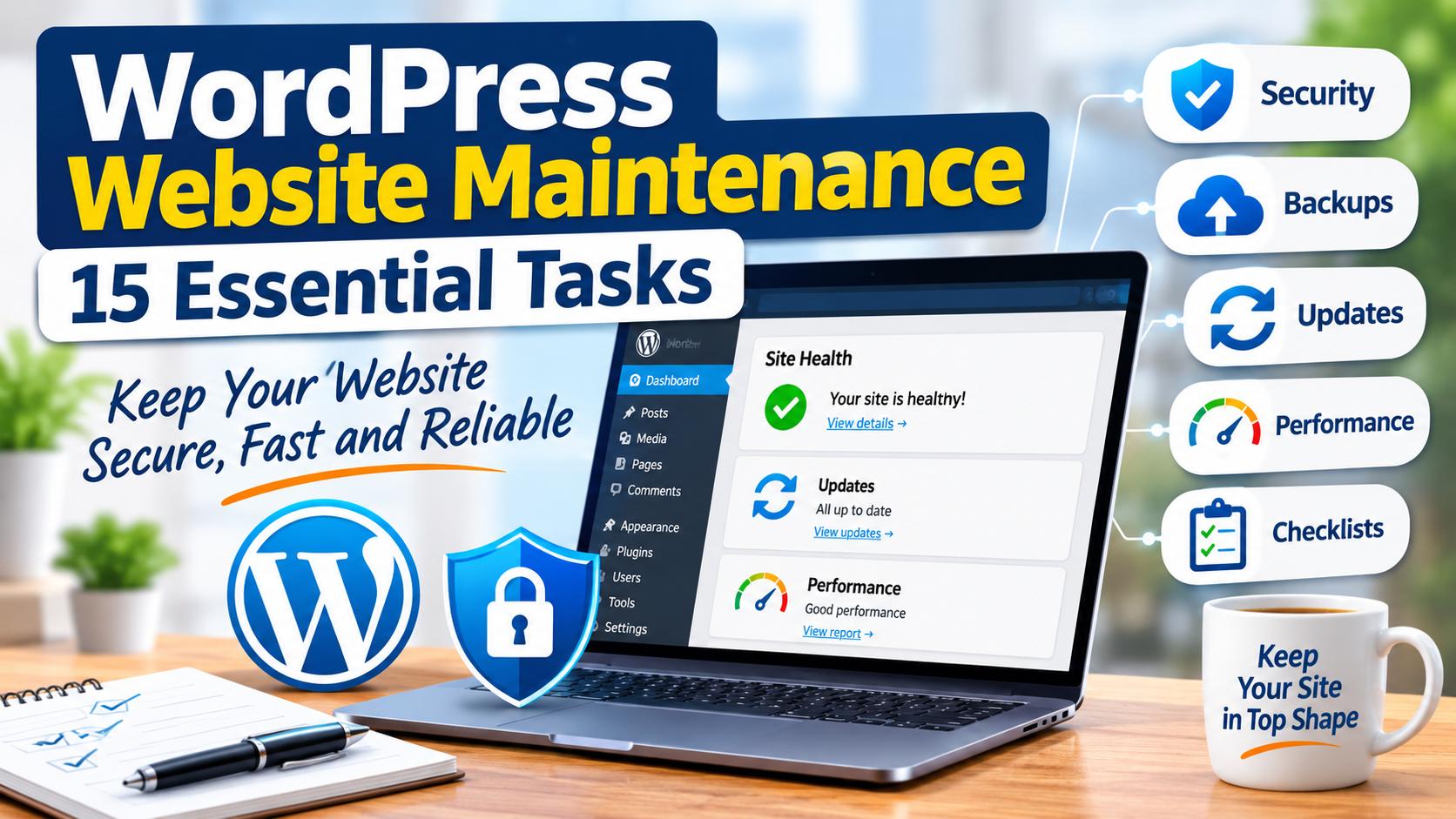
In this guide, you will discover 15 essential maintenance tasks, how frequently to perform them and practical ways to keep your website running smoothly.
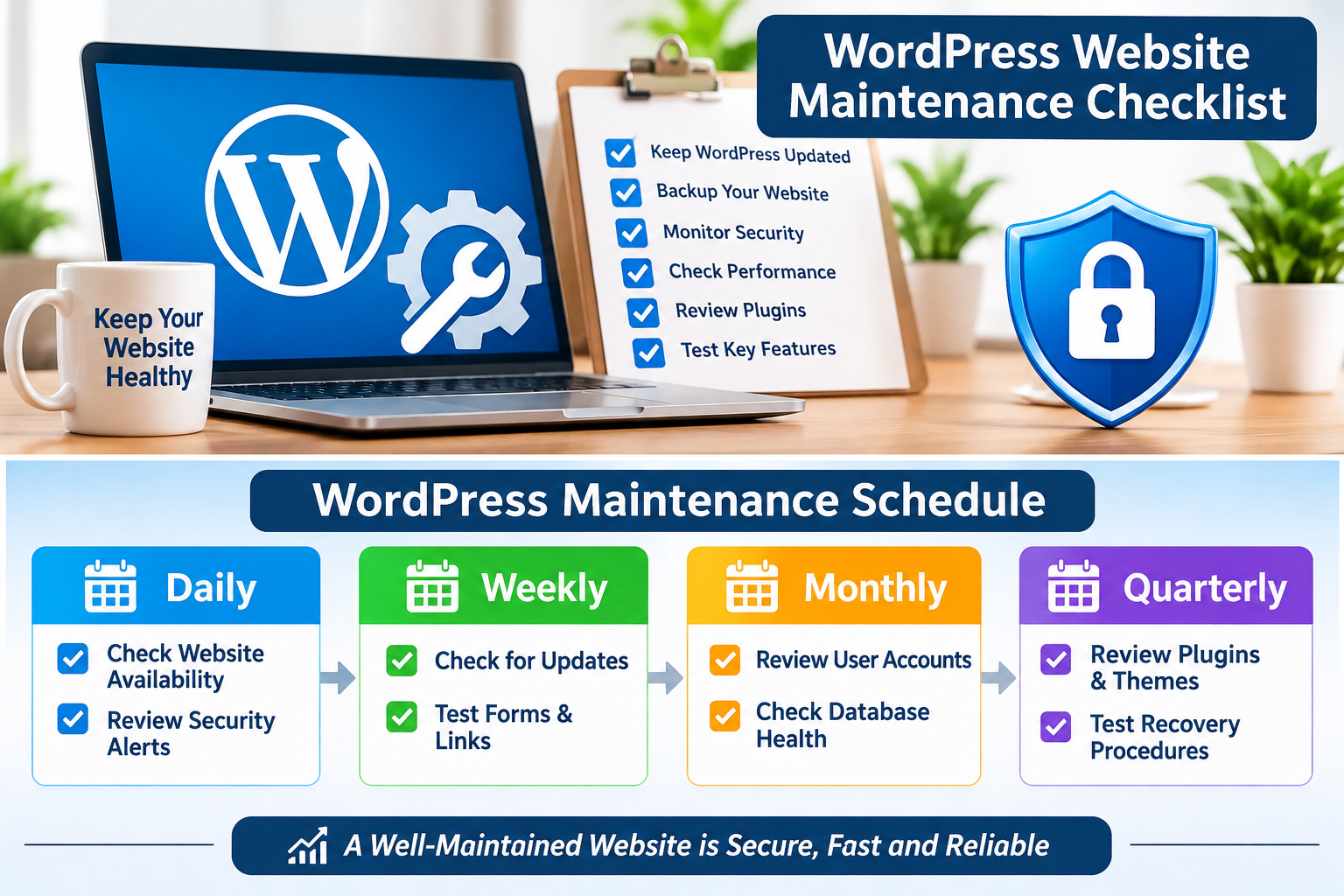
What Is WordPress Website Maintenance?
WordPress website maintenance refers to the regular activities involved in keeping a WordPress website secure, updated, accessible and functioning correctly.
These activities include updating WordPress software, themes and plugins, creating backups, monitoring security, checking website performance, removing unnecessary files and testing important website features.
Maintenance is not a one-time activity. It is an ongoing process that helps prevent avoidable problems and ensures that your website continues to serve its visitors effectively.
Effective WordPress website maintenance combines preventive checks with timely action when problems occur. For example, installing a security update can help protect your website against known vulnerabilities. Testing a backup can also help you recover your content if something goes wrong.
A good maintenance routine should cover three important areas:
- Security: Protecting your website, user accounts and stored information from unauthorised access and other threats.
- Performance: Keeping pages responsive, images optimised and unnecessary resources under control.
- Reliability: Making sure that important pages, forms, links and website features continue to work correctly.
15 Essential WordPress Website Maintenance Tasks
1. Keep WordPress Core Updated
WordPress regularly releases software updates that may include security improvements, bug fixes, performance enhancements and new features.
Running an outdated version can expose your website to known security weaknesses and compatibility problems.
Log in to your WordPress dashboard and visit Dashboard > Updates to check whether a new version is available.
Before installing a major update, make sure you have a recent backup. If your website supports important business operations, consider testing major updates on a staging website first.
Enable automatic updates where appropriate, but do not assume that every update can be installed without checking its effect on your website. Regular WordPress website maintenance also involves checking that important updates have installed successfully.
For more information, see the official WordPress guide to updating WordPress.
2. Update Your Themes and Plugins
Themes and plugins add functionality and design features to WordPress websites. However, outdated extensions can introduce security risks or cause compatibility issues.
Check the Updates section of your dashboard regularly and install updates from trusted developers.
Before updating several important plugins at once, create a backup. For business-critical websites, update one component at a time and test important features after each update.
Pay particular attention to plugins responsible for contact forms, payments, SEO, security and website performance.
If a plugin is no longer maintained, has compatibility problems or is no longer needed, investigate a suitable replacement or remove it safely.
3. Create Regular Website Backups
Backups are among the most important parts of WordPress website maintenance.
A backup provides a recovery point if your website experiences a failed update, accidental deletion, server problem, malware infection or other serious incident.
A complete WordPress backup should include:
- Website files, including themes, plugins and uploaded media.
- The WordPress database containing posts, pages, settings and other stored information.
- Important configuration files where applicable.
You can use a reputable backup plugin or a hosting provider’s backup service. For additional guidance, consult the official WordPress documentation on WordPress backups.
Choose a backup frequency based on how often your website changes. A frequently updated blog or online store may require daily backups, while a less active website may need a different schedule.
Keep copies outside the website’s hosting account where possible. An independent backup location provides additional protection if the hosting account becomes inaccessible.
Most importantly, occasionally test whether your backups can actually be restored. A backup that cannot be recovered may provide little practical protection.
Reliable backups should be treated as a core part of every WordPress website maintenance strategy.
4. Monitor Website Security
Website security should be part of your regular maintenance routine.
Weak passwords, outdated software, compromised administrator accounts and vulnerable plugins can put a WordPress website at risk.
Consider the following security practices:
- Use strong, unique passwords for administrator accounts.
- Enable two-factor authentication where supported.
- Remove unused administrator accounts.
- Keep WordPress core, themes and plugins updated.
- Use reputable security tools where appropriate.
- Review suspicious login activity and unexpected changes.
- Restrict administrative access to trusted users.
Security plugins such as Wordfence can provide features for monitoring suspicious activity and protecting WordPress installations. However, installing a security plugin does not replace good account management, updates and secure hosting practices.
Good WordPress website maintenance requires attention to both software security and administrator account protection.
For additional recommendations, see the official WordPress guide to hardening WordPress.
For a more detailed explanation, read our guide on How to Secure a WordPress Website: 12 Practical Steps for Beginners.
5. Check Your Website’s Loading Speed
Website speed affects how visitors interact with your pages. Slow websites can frustrate visitors, particularly those using mobile devices or slower internet connections.
Test important pages periodically using tools such as Google PageSpeed Insights.
Pay attention to factors such as:
- Large or unoptimised images.
- Unnecessary JavaScript and CSS.
- Excessive third-party scripts.
- Poor caching configuration.
- Slow hosting response times.
- Unnecessary plugins and website features.
Do not install several caching or optimisation plugins that perform overlapping functions. Choose an appropriate solution for your hosting environment and test the results after making changes.
Performance monitoring makes WordPress website maintenance more effective by revealing problems that may otherwise go unnoticed.
If you want to understand the different hosting options and their performance implications, see our guide on How to Choose Web Hosting: The Best Beginner’s Guide for 2026.
6. Review Your Website’s Plugins
Plugins are useful, but installing too many unnecessary extensions can make website management more complicated.
Review your installed plugins periodically and ask the following questions:
- Is this plugin still necessary?
- Is it actively maintained?
- Does it provide features already available through another plugin?
- Is it compatible with my WordPress installation?
- Does it affect website performance?
Deactivate and remove plugins that are no longer required. Before removing an important plugin, check whether it stores data or provides features that your website depends on.
Avoid installing multiple plugins that perform the same task unless there is a clear technical reason.
Reviewing plugins regularly is an important part of responsible WordPress website maintenance.
For a practical introduction to choosing suitable extensions, read WordPress Plugins for Beginners: 15 Essential Plugins for Building a Better Website.
7. Check Your Website’s Forms
Contact forms, enquiry forms, subscription forms and other interactive features help visitors communicate with your business.
However, these features can stop working because of plugin updates, email delivery problems, configuration errors or other technical changes.
Test your important forms periodically by submitting a test message.
Check that:
- The form displays correctly on desktop and mobile devices.
- Required fields and validation work properly.
- Successful submissions produce the expected confirmation.
- Notification emails reach the intended inbox.
- Spam protection does not block legitimate submissions unnecessarily.
If your website uses a form plugin, check its settings and confirm that its email delivery configuration is working correctly.
8. Review Website Links and Navigation
Broken links can frustrate visitors and make it difficult for them to find useful information.
Review your main navigation menu, important internal links and external references periodically.
Check that:
- Menu items open the correct pages.
- Important internal links are not broken.
- External links lead to the intended destinations.
- Buttons and calls to action work correctly.
- Visitors can easily return to the homepage.
Include link checking in your WordPress website maintenance schedule to identify problems early.
Also review your website’s 404 error page. If you have moved or deleted important content, consider setting up appropriate redirects to relevant replacement pages.
9. Monitor Website Availability
Website downtime occurs when visitors cannot access your website. It can result from hosting problems, server maintenance, network interruptions, software errors or security incidents.
Use a website monitoring service to check availability and receive alerts when your website becomes inaccessible.
Monitoring is particularly important for business websites and online stores because extended downtime can affect enquiries, customer confidence and sales.
If your website experiences repeated downtime, investigate the underlying cause instead of simply restarting services or reinstalling software without understanding the problem.
Your hosting provider may be able to help identify server-related issues.
10. Optimise Your Website Images
Images make articles and pages more engaging, but large image files can increase loading times.
Optimise images before uploading them to WordPress.
Useful practices include:
- Resize images to dimensions appropriate for their intended display.
- Use modern image formats such as WebP or AVIF where supported.
- Compress images without noticeably reducing their quality.
- Use descriptive file names.
- Add meaningful alternative text to informative images.
- Avoid uploading several unnecessarily large versions of the same image.
Image optimisation can improve page performance while making your website easier to use, especially on mobile devices.
Do not add keywords unnaturally to image alternative text. Describe the actual image and its purpose.
11. Clean Up Your WordPress Database
WordPress stores information such as posts, pages, comments, settings and other website data in a database.
Over time, unnecessary information may accumulate. Examples include old post revisions, expired transient data, spam comments and other redundant records.
A database cleanup can help reduce unnecessary data, but it should be approached carefully.
Before performing database optimisation:
- Create a complete database and website backup.
- Understand what the cleanup tool intends to remove.
- Avoid deleting records whose purpose is unclear.
- Check that important website features still work afterwards.
Do not assume that deleting database records will automatically make your website faster. The benefit depends on the size of the database and the nature of the stored information.
12. Review WordPress User Accounts and Permissions
Every WordPress user should have only the permissions necessary to perform their responsibilities.
For example, an administrator can manage almost every part of a WordPress installation, while an author can publish and manage their own articles.
Review your user accounts periodically.
Look for:
- Unused accounts belonging to former contributors.
- Unexpected administrator accounts.
- Duplicate user accounts.
- Weak or shared login credentials.
- Users with more permissions than they require.
Remove or adjust accounts when appropriate, but take care not to delete the only administrator account or remove ownership of important content accidentally.
Use separate accounts for different people rather than sharing one administrator login.
User account reviews should be included in routine WordPress website maintenance, particularly on websites with multiple contributors.
13. Check Your SSL Certificate and HTTPS Configuration
An SSL/TLS certificate helps establish an encrypted connection between a visitor’s browser and your website.
Your website should load correctly using HTTPS, without browser security warnings or mixed-content problems.
Periodically check that:
- Your SSL/TLS certificate is valid and has not expired.
- Your website redirects HTTP visitors to HTTPS where appropriate.
- Important pages load securely.
- Images, scripts and stylesheets do not introduce mixed-content warnings.
Many hosting providers offer automated certificate management, but website owners should still monitor certificate status and investigate unexpected browser warnings.
14. Review Website Content and SEO
Publishing useful content is important, but existing content also needs attention.
As part of your WordPress website maintenance routine, review important articles and pages to ensure that their information remains accurate and relevant.
Consider checking:
- Outdated information and broken references.
- Incorrect product details and pricing.
- Spelling, grammar and formatting problems.
- Missing or irrelevant internal links.
- Duplicate or thin content that needs improvement.
- Page titles and meta descriptions.
- Unnecessary redirects and missing pages.
Google Search Console can help you monitor indexing information, search performance and certain website issues.
An SEO plugin such as Rank Math can also help you manage titles, descriptions, sitemaps and other optimisation settings.
Content reviews help make WordPress website maintenance useful beyond technical updates and security checks.
For more practical advice, read our guide on WordPress SEO for Beginners: 12 Practical Ways to Improve Your Website’s Google Visibility.
15. Test Important Website Features Regularly
A website can appear normal while some of its important functions are not working correctly.
For this reason, include functional testing in your maintenance routine.
Depending on the type of website, test:
- Homepage and important landing pages.
- Contact and enquiry forms.
- Login and registration features.
- Search functionality.
- Navigation menus and buttons.
- Newsletter subscription forms.
- Shopping cart and checkout processes for online stores.
- Payment and order confirmation processes where applicable.
Also check your website on different screen sizes. A page that looks good on a desktop computer may have layout problems on a smartphone.
Regular functional testing helps you identify problems before visitors report them.
How Often Should You Maintain a WordPress Website?
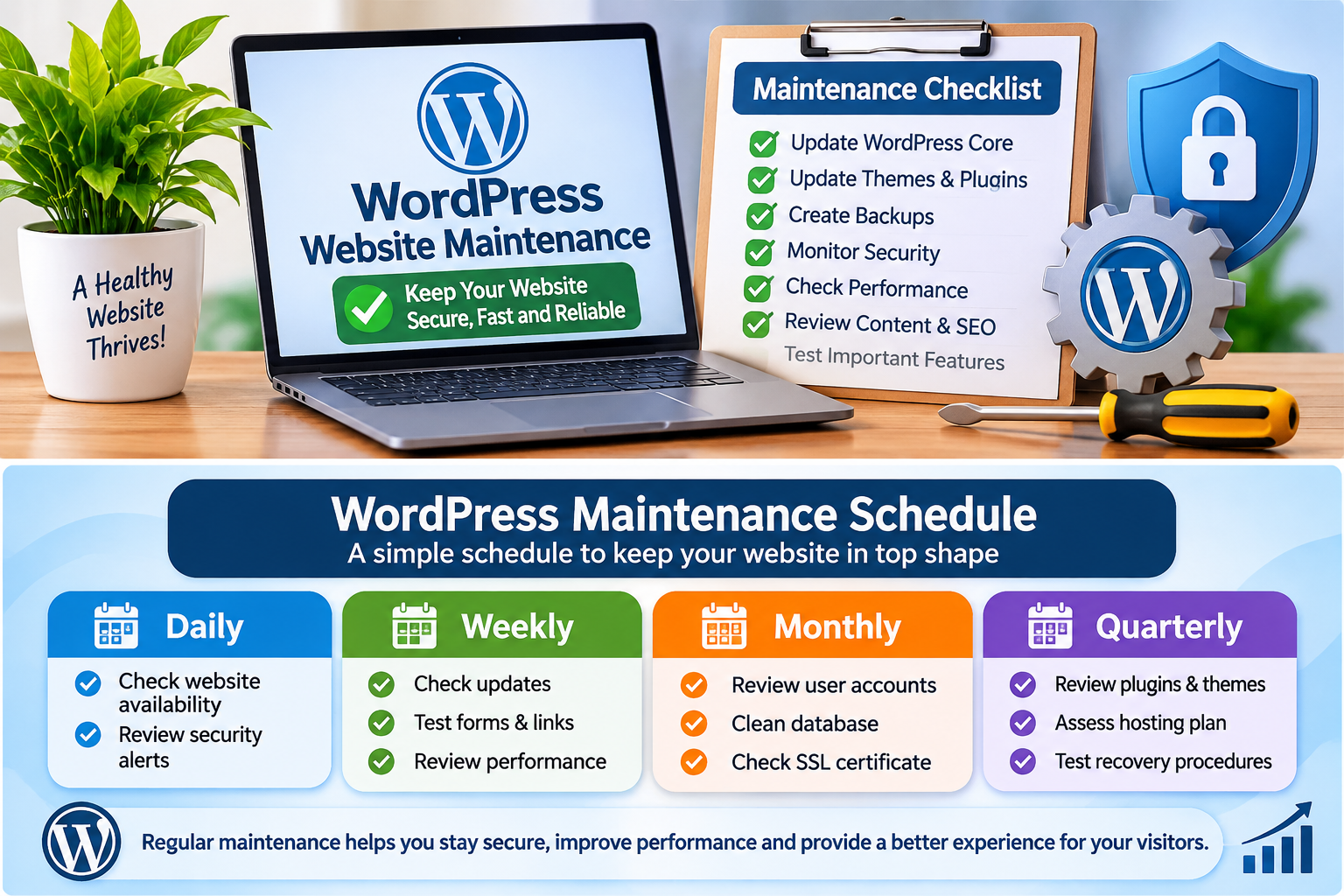
Not every maintenance activity needs to be performed daily. The appropriate frequency depends on how often your website changes, how important its services are and how much traffic it receives.
A documented WordPress website maintenance checklist makes recurring tasks easier to track and complete.
The following schedule provides a useful starting point.
Daily Tasks
- Check important website availability alerts.
- Review critical security notifications.
- Confirm that scheduled backups are completing successfully.
- Check important enquiry or order notifications where applicable.
Weekly Tasks
- Review available WordPress, theme and plugin updates.
- Check important forms and website features.
- Review security alerts and suspicious activity.
- Check website performance and important links.
Monthly Tasks
- Review user accounts and permissions.
- Inspect website content and internal links.
- Review database health and remove unnecessary data carefully.
- Check SSL certificate status.
- Review Google Search Console reports.
- Test backup restoration procedures periodically.
Quarterly Tasks
- Review your hosting resources and website storage usage.
- Evaluate plugins and themes that are no longer needed.
- Review website security arrangements.
- Test website recovery procedures.
- Assess whether your hosting plan still meets your website’s needs.
This schedule is a practical guide rather than a fixed rule. Websites with frequent transactions, memberships or regularly updated content may require more frequent checks.
Common WordPress Maintenance Mistakes to Avoid
Even website owners who understand the importance of maintenance can make mistakes that create unnecessary problems.
Here are some common ones to avoid.
1. Updating Without a Backup
Installing updates without a recent backup can make recovery difficult if an update causes an unexpected problem. Always protect important website data before performing significant maintenance.
2. Installing Too Many Plugins
Adding plugins without considering their purpose, quality and compatibility can complicate website management. Choose reliable extensions that meet specific needs.
3. Ignoring Security Warnings
Unusual login attempts, suspicious files and unexpected administrator accounts should not be ignored. Investigate security alerts promptly.
4. Assuming Backups Are Working
A backup plugin may report successful backup activity, but that does not automatically prove that the backup can be restored. Test recovery procedures periodically.
5. Making Major Changes Directly on a Live Website
Major theme changes, plugin replacements and significant software updates can affect the live website. Use a staging environment where practical before making high-impact changes.
Skipping routine WordPress website maintenance can allow small technical issues to become more serious problems.
Can Beginners Handle WordPress Website Maintenance?
Yes. Many routine maintenance activities can be handled by beginners who are comfortable using the WordPress dashboard.
Tasks such as reviewing updates, checking links, testing forms, monitoring website availability and reviewing user accounts do not usually require advanced programming knowledge.
However, some activities require technical experience.
For example, investigating database errors, resolving server configuration problems, cleaning up malware infections and restoring a compromised website may require assistance from an experienced WordPress developer or hosting administrator.
The best approach is to understand your limits and seek professional assistance when a problem involves important website data, security or server configuration.
Frequently Asked Questions About WordPress Website Maintenance
1. Is WordPress website maintenance necessary?
Yes. Regular maintenance helps keep your website secure, updated, functional and reliable. Without it, outdated software, broken features, security weaknesses and performance problems may go unnoticed.
2. How often should I maintain my WordPress website?
Basic checks should be performed regularly, with important updates, security reviews and functional tests scheduled according to your website’s needs. A combination of daily, weekly, monthly and quarterly checks provides a useful starting point.
3. Can I maintain my WordPress website myself?
Yes. Beginners can handle many routine tasks, including updates, backups, content reviews and basic security checks. More complex technical problems may require professional assistance.
4. What happens if I do not update WordPress?
An outdated WordPress installation may miss important security fixes, bug corrections and compatibility improvements. This can increase the risk of security incidents and technical problems.
5. Do I need a plugin to maintain my WordPress website?
Not necessarily. Some maintenance activities can be performed through the WordPress dashboard or your hosting control panel. Plugins can simplify tasks such as backups, security monitoring and performance optimisation, but choose them carefully.
6. What is the most important WordPress maintenance task?
There is no single task that covers every maintenance need. However, maintaining reliable backups, applying appropriate security updates and monitoring website health are among the most important activities.
7. How do I create a WordPress website maintenance schedule?
Start by listing the maintenance tasks your website needs and assigning a suitable frequency to each one. A suitable schedule depends on the website’s activity, complexity and security requirements. Use a checklist to track completed tasks and outstanding issues.
Conclusion
A WordPress website requires continuous attention after its initial launch. Regular maintenance helps protect your website, improve its performance, prevent avoidable errors and provide a better experience for visitors.
By following the 15 tasks in this guide, you can establish a practical maintenance routine covering software updates, backups, security, performance, content quality and website functionality.
Consistent WordPress website maintenance also helps website owners manage their online presence with greater confidence.
Start with the essentials, such as creating reliable backups, keeping your software updated and monitoring security. Then gradually introduce additional checks based on your website’s size, purpose and activity level.
Remember that WordPress website maintenance is not about making unnecessary changes every day. It is about taking consistent, sensible steps to keep your website healthy and dependable over time.